Editing Files: Developer Workflow
You can work with files for the Altair CP/M system in two primary ways:
- External editor on your host (Recommended) – Edit locally with a modern editor such as Visual Studio Code. This gives you syntax highlighting, search, Copilot / LLM assistance, version control, etc.
- On‑emulator editing (Word-Master) – Edit inside the emulated CP/M environment using the bundled Word-Master editor. Authentic, but slower and less ergonomic for substantial changes.
Editing Files with External Tools (Recommended)
Follow this fast loop for most development:
- Pick an editor – Example: Visual Studio Code (with optional Copilot / LLM assistance).
- Create a folder on your host computer to hold your source files.
- Create or modify your source – Edit as normal on your host (BASIC, C, ASM, etc.).
- Build C on the host using dcc and the app's
build-app.ps1, or usedccmakefor a build without installing into a disk image. See C Programming. - Make text/assembly files available to FT. ESP32 uses its configured remote FT server. The retired GF HTTP utility and BDS build workflows are not supported.
-
Transfer a file into CP/M with the current FT client:
ft -g games/awari.bas(File names are case‑insensitive; CP/M convention is uppercase.)
-
Run or build – Examples:
- BASIC:
mbasic awari.
- BASIC:
Repeat the edit/build/transfer steps as you refine your program. FT -g
normalizes text to CP/M line endings; use -gb for a prebuilt .COM file.
FT is not an arbitrary HTTP/GitHub downloader.
Automating Transfers & Builds with CP/M SUBMIT
Current .SUB workflows fetch and assemble the retained assembly apps.
For example:
b:
ft -g date/date.sub
submit date
The MCP build server can run these workflows automatically. C applications are built with dcc on the host, not with the removed BDS SDK/compiler.
Editing Files with the Word-Master Text Editor
The emulator bundles MicroPro Word-Master. Historically powerful, but spartan compared with modern editors.
Ten‑minute video introduction
Fastest workflow: edit with Visual Studio Code, then transfer with FT. The historical video uses an older transfer workflow:
▶ Video: Editing Files Workflow (YouTube)
If embedding is required later, update the markdown linter configuration to allow iframe (rule MD033) and restore the embed.
Editing inside Word-Master
Preferred path remains: local editing and FT transfer. For the authentic experience:
- Toggle the web terminal to character mode (
Ctrl+L). - Launch Word-Master (e.g.,
wm filename.asm). - Use the control key commands below for navigation / editing.
- When finished, exit Word-Master, then toggle back to line mode (
Ctrl+L) for faster terminal interaction.
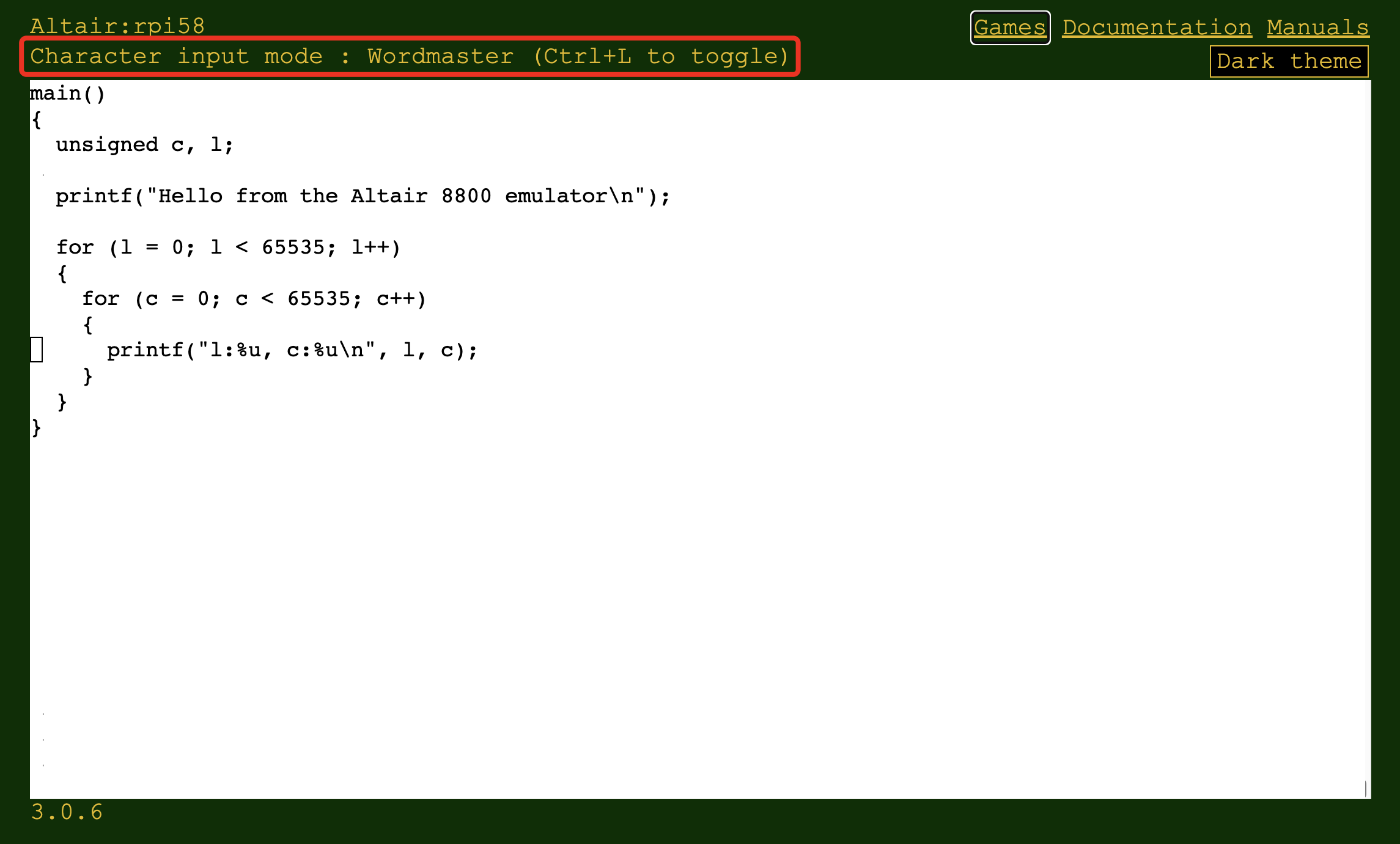
For full details see the Word-Master user guide.
The following table lists the Ctrl characters that Word-Master uses. This list is sourced from the Experiencing the Altair 8800 blog.
VIDEO MODE SUMMARY

^O   INSERTION ON/OFF           RUB  DELETE CHR LEFT
^S   CURSOR LEFT CHAR           ^G   DELETE CHR RIGHT
^D   CURSOR RIGHT CHAR          ^\   DELETE WORD LEFT
^A   CURSOR LEFT WORD           ^T   DELETE WORD RIGHT
^F   CURSOR RIGHT WORD          ^U   DELETE LINE LEFT
^Q   CURSOR RIGHT TAB           ^K   DELETE LINE RIGHT
^E   CURSOR UP LINE             ^Y   DELETE WHOLE LINE
^X   CURSOR DOWN LINE           ^I   PUT TAB IN FILE
^^   CURSOR TOP/BOT SCREEN      ^N   PUT CRLF IN FILE
^B   CURSOR RIGHT/LEFT LINE     ^@   DO NEXT CHR 4X
^W   FILE DOWN 1 LINE           ^P   NEXT CHR IN FILE
^Z   FILE UP 1 LINE             ^V   NEXT CHR(S) TO VIDEO
^R   FILE DOWN SCREEN           ESC  EXIT VIDEO MODE
^C   FILE UP SCREEN             ^J   DISPLAY THIS
In character input mode, these host key mappings help mirror Word-Master's control sequences:
Keyboard key            Word-Master Ctrl Sequence
----------------------------------------------
Insert                  ^O   INSERTION ON/OFF
Delete                  ^G   DELETE CHR RIGHT
Cursor Left             ^S   CURSOR LEFT CHAR
Cursor Right            ^D   CURSOR RIGHT CHAR
Cursor Up               ^E   CURSOR UP LINE
Cursor Down             ^X   CURSOR DOWN LINE