Configuring resources
To use the Azure AI Proxy, you need to configure the resources. This guide will walk you through the process of configuring the resources.
Managing resources
The following assumes you have an AI Proxy deployment for your organization and have access to the AI Proxy Admin portal to configure the resources. If you do not have an AI Proxy deployment, please refer to the deployment guide.
This is typically a one-off process. Once you have configured the resources, you can use the same resources for multiple events.
- Create the required Azure AI resources (OpenAI models, AI Search services, Foundry Agents, etc.) in your Azure subscription.
- Sign into the AI Proxy Admin portal (see Authenticating with the AI Proxy Admin).
-
Select the
Resourcestab, then add a collection of resources that you will use for your events.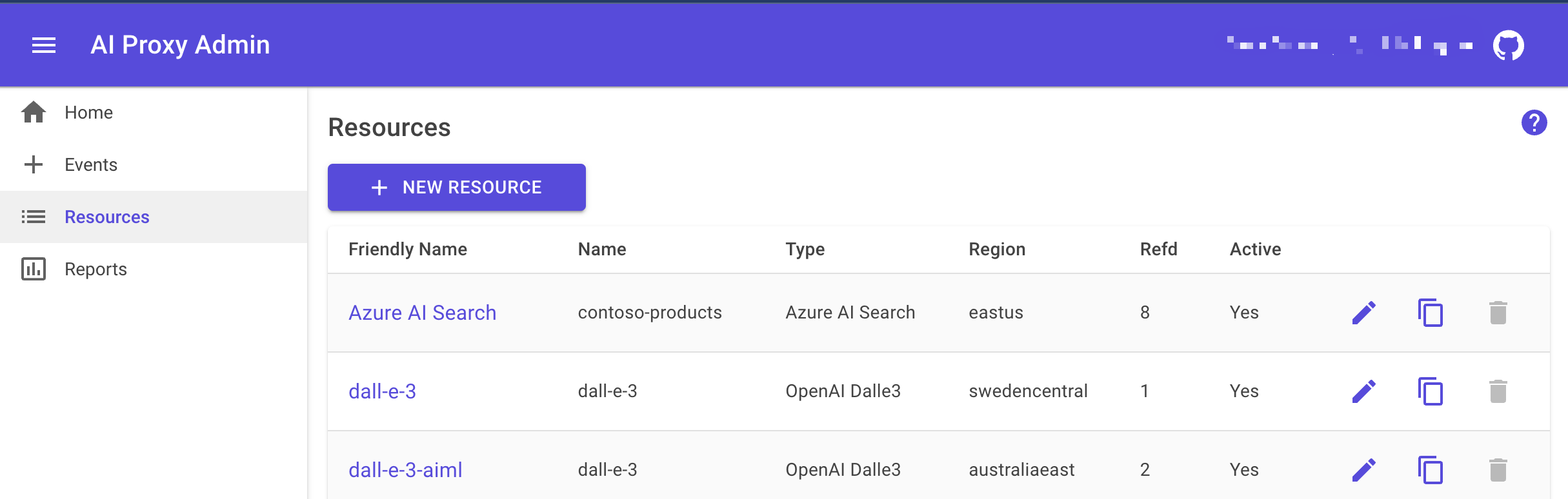
Adding resources
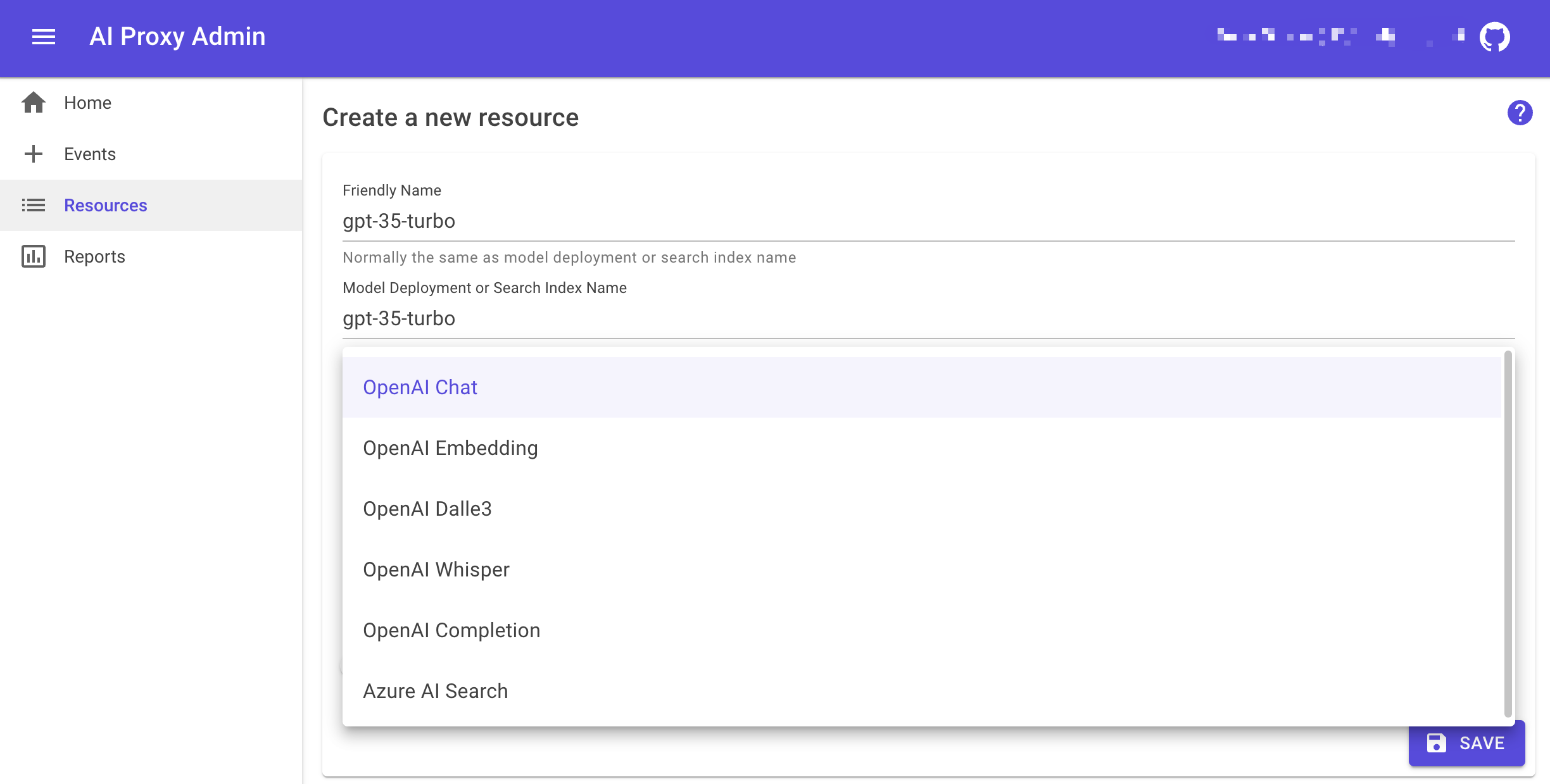
To add a resource, click on the + New Resource button.
Resource types
The proxy supports the following resource types:
| Resource Type | Description |
|---|---|
| Foundry Model | Azure OpenAI / Foundry model deployments for chat completions and embeddings |
| Foundry Agent | Azure AI Foundry Agent Service for agent, assistant, thread, file, conversation, and response operations |
| MCP Server | Model Context Protocol server endpoints |
| AI Toolkit | Models surfaced to attendees via the VS Code AI Toolkit extension |
| Azure AI Search | Pass-through access to Azure AI Search indexes |
Adding Azure Foundry models with Managed Identity
The proxy supports model deployments secured with either API Keys or Azure Managed Identity authentication. This is the recommended approach for Azure Foundry model deployments and is REQUIRED if using the Azure AI Foundry Agent Service via the proxy.
For step-by-step instructions on setting up Managed Identity, see the Managed Identity guide.
Duplicate resources
Duplicating a resource is useful when you want to create a new resource with similar settings as an existing resource.
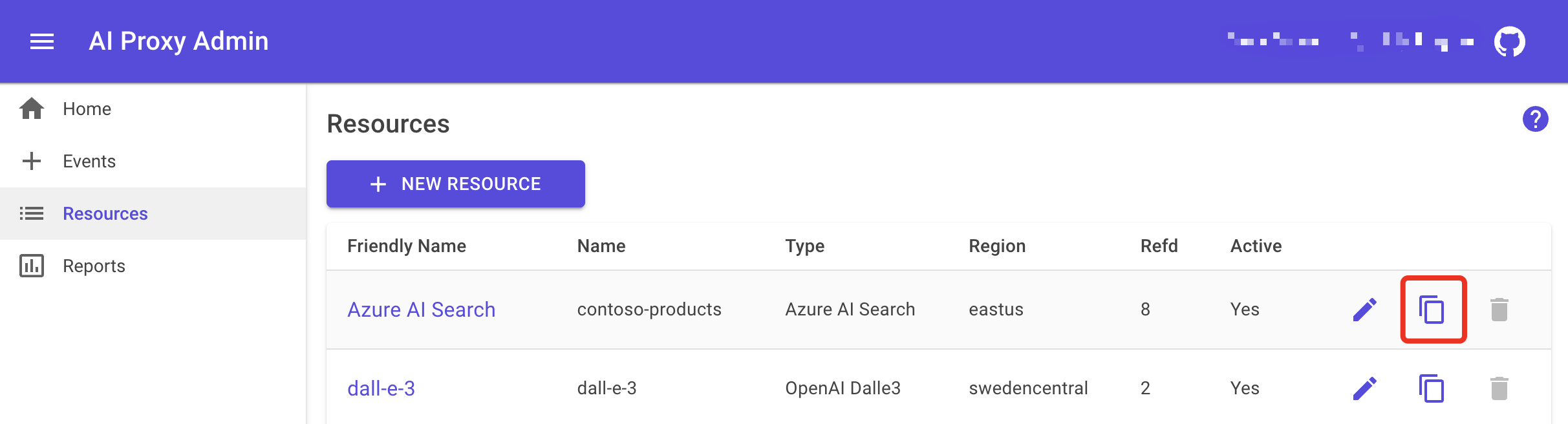
To duplicate a resource, click on the Duplicate icon next to the resource you want to duplicate.
Deleting resources
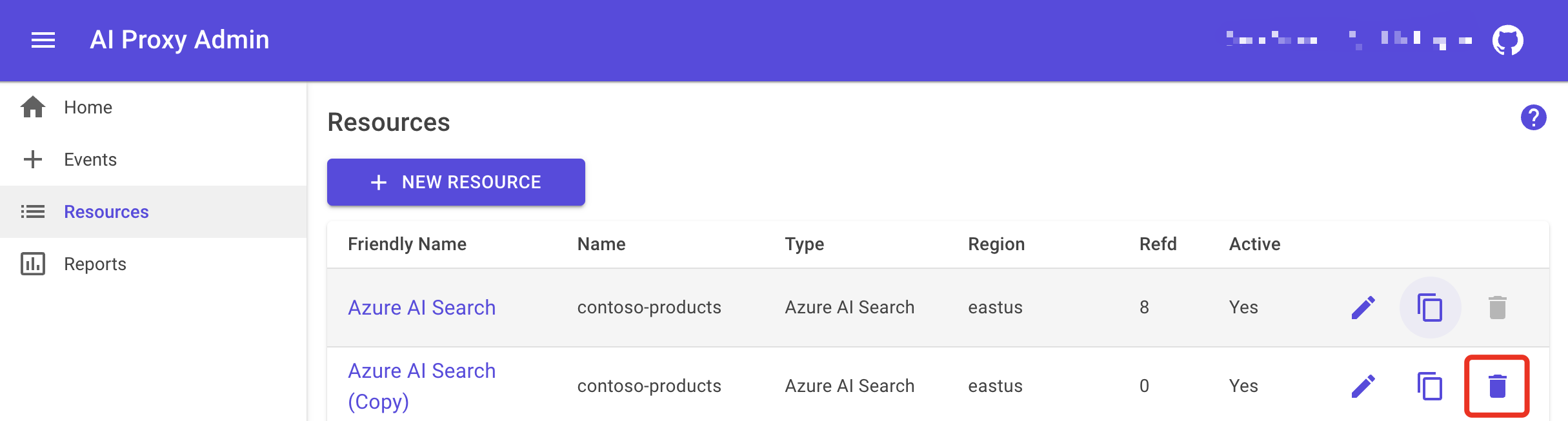
To delete a resource, click on the Delete icon next to the resource you want to delete. Note, you cannot delete a resource that is in use by an event.
Adding AI Toolkit models
The proxy supports resources of type AI Toolkit, which are surfaced to attendees using the VS Code AI Toolkit extension. When you create or edit a resource, select AI Toolkit from the Type dropdown.
AI Toolkit resources are listed as available model endpoints in the attendee registration page so that users can configure the AI Toolkit extension to connect through the proxy.
Enabling AI Toolkit GPT-5.x compatibility
Some newer models (e.g. GPT-5.x) only accept the max_completion_tokens parameter and reject the older max_tokens parameter. The AI Toolkit extension may still send max_tokens in requests, which causes these models to return errors.
To work around this, enable the AI Toolkit GPT-5.x compatibility toggle when editing an AI Toolkit resource. When enabled, the proxy automatically rewrites max_tokens to max_completion_tokens in outgoing requests for that resource.
Note
The AI Toolkit GPT-5.x compatibility toggle only appears when the resource type is set to AI Toolkit.